Computer

Articles concerning hardware and software

Xfinity is not always the culprit of slow Ethernet/Wi-Fi speeds…

Dell XPS 8950 – Windows 11 Pro
Killer E3100G 2.5 Gigabit Ethernet Controller
Netgear Modem: CM3000 (2.5 GB port)
Netgear Router: RS280S (2.5 GB port)
Ethernet cables: 1 foot CAT-6a

I upgraded to the 2 GB DL/250 Mbps UL 5-Year plan (mid-split). What follows are the things I did to get the speeds Xfinity promised. My Wi-Fi speeds were spot on, but the very slow Ethernet DL speeds were the issue for my setup. I got a great deal of excellent advice from r/HomeNetworking Reddit group.

  • Created a Windows ‘System Restore Point’ prior to any changes.
  • I did a ‘deep uninstall’ of Killer Intelligence Center (what Dell’s come with).
    • Uninstalling this also help reduce overall CPU usage.
  • Uninstalled the Killer drivers for the card and after a reboot… I let Windows install the ‘default’ Windows certified drivers.
  • Unplugged the modem and router and restarted the PC.
    • Plugged only the modem back in and rebooted the PC.
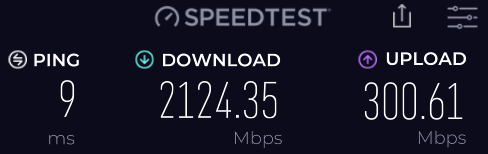
    • Discovered that the direct connect speeds were in line with promised speeds of around 2 GB DL and UL speeds close to 300 Mbps.
  • I rebooted the PC and then plugged in modem and router in that order.
    • Saw that hardwired speeds with router back online… were not as fast as modem only speeds e.g., the issue still existed.

I decided to revisit an app I has used years ago… ‘TCPOtimizer’. I downloaded ‘TCPOptimizer 4’ from speedguide.net

  • Ran the app as ‘Administrator’, selected my Ethernet Controller in the dropdown window.
  • Set the slider for ‘Connection Speed’ to 100+Mbps.
  • Under the ‘Choose Settings’ I selected ‘Optimal’ and noted the changes that populated the settings above the ‘Choose Settings’ section.
  • Selected ‘Apply Settings’ and rebooted.

Using TCPOtimizer 4 (at least for me and my situation) solved my slow Ethernet speed connections. Your mileage may vary, use at your own risk.

I hope this helps!
Nerd Nirvana… Mailbird maze solved!

So… quite a few weeks ago I had made a comment on Windows Central asking about a software app for Windows 10. My request was to find out if anyone knew of an app that could act as a dashboard for the few collective apps I wanted to view all at once. So picture this… I wanted my various mailboxes (Outlook 2016), Todoist, Skype (SMS messaging), and maybe Word to all come up in the same window, or at the very least the same time with “one” launch.

There was only one suggestion for an app called “Rocket Dock,” but that didn’t quite solve my dilemma after having looked at it. Then I remembered from the “olden days,” using “Batch Files,” a small script you can write that will perform a group of actions with one click. I delved into that for a while realizing this wasn’t the answer in today’s world either. Could have worked if I stayed with it, just too damn archaic.

Well, I’ve found the closest damn thing to perfect I can. I was on one of my favorite websites “TheAwesomer.com” and saw an ad for the app “Mailbird” I checked it out because the discount was quite deep for a “Lifetime Pro” account. So I played with it quite a bit before deciding a day later it would be worth it.

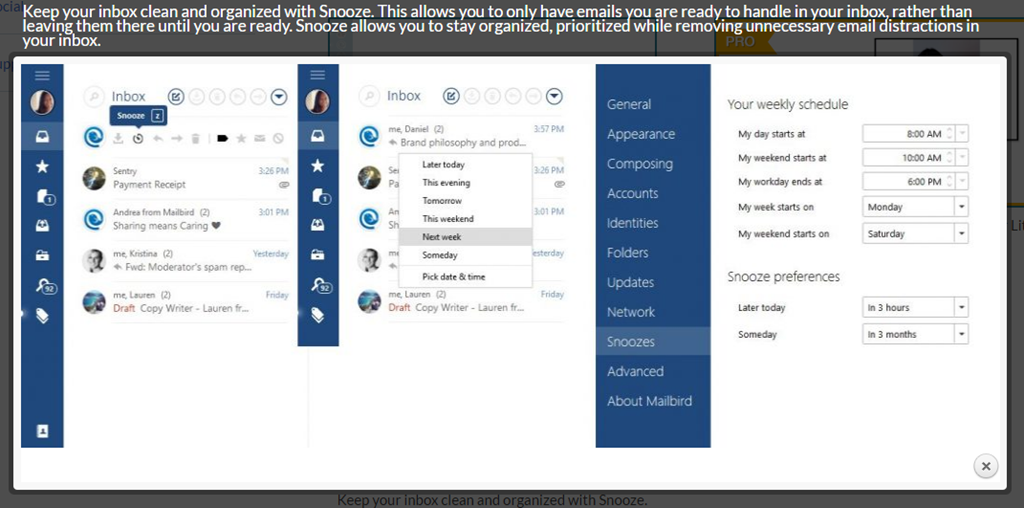
So what does this ONE application Mailbird do for me? It displays all of what I need in one window!

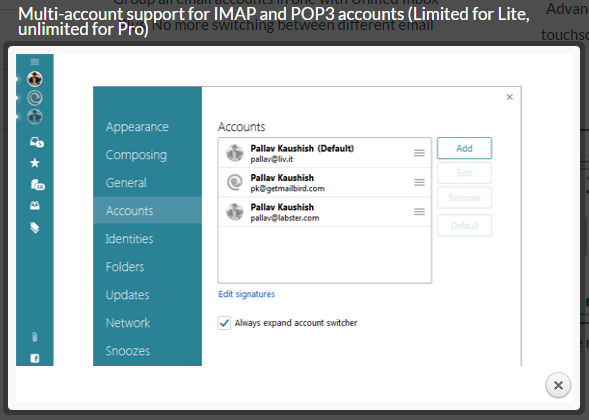
  1. eMail – multiple accounts – in my case five
  2. A “Unified” account to see all
  3. All and any of my existing folders for email organization are all there as well
  4. Attachments
  5. Contacts imported from any of those mail accounts
  6. Google Calendar (GC)– (NO Office 365 Outlook integration)
  7. Slack
  8. Todoist
  9. Twitter
  10. WhatsApp – (NO Skype integration)
  11. And a LOT, lot more!

Now, in order to get this application to near perfection, it took a lot of trial and tribulation on my part. Mostly because I don’t do much of anything in Google at all. I have Gmail and Google Voice, but never really used any of the other functions of Google e.g., Calendar, Tasks, etc. So there’s a bit of tweaking to get things where they need to be. Spent a good part of the whole day blowing crap up to turn around to later fix or make right. But that’s ONLY because I’m a bit anal.

So to bring everything into this one portal I employed a few tools;

  1. IFTTT – (If This Than That) to have certain Todoist tasks populate Google Calendar (remember I don’t use GC)
  2. gSyncit – So that events created in my Outlook Calendar (OC) can synch 2-ways with Google Calendar – meaning the IFTTT Todoist applets can populate GC with my todo’s and those get picked up into my OC

Now the only thing is, this is on my desktop at home, so no mobile app version of Mailbird and of course no installing this great tool at work. But all-in-all… that’s O.K. because the home office is where the bulk of my work is done anyway. Took a bit of work, but overall I’m quite happy with this setup as it brings just about everything I wanted together under one roof… er… window!

TwitterMailbird MultiMailbird_Accounts MailbirdSnooze