Dell XPS 8950 – Windows 11 Pro
Killer E3100G 2.5 Gigabit Ethernet Controller
Netgear Modem: CM3000 (2.5 GB port)
Netgear Router: RS280S (2.5 GB port)
Ethernet cables: 1 foot CAT-6a
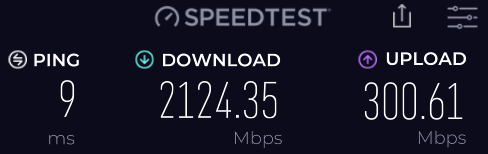
I upgraded to the 2 GB DL/250 Mbps UL 5-Year plan (mid-split). What follows are the things I did to get the speeds Xfinity promised. My Wi-Fi speeds were spot on, but the very slow Ethernet DL speeds were the issue for my setup. I got a great deal of excellent advice from r/HomeNetworking Reddit group.
- Created a Windows ‘System Restore Point’ prior to any changes.
- I did a ‘deep uninstall’ of Killer Intelligence Center (what Dell’s come with).
- Uninstalling this also help reduce overall CPU usage.
- Uninstalled the Killer drivers for the card and after a reboot… I let Windows install the ‘default’ Windows certified drivers.
- Unplugged the modem and router and restarted the PC.
- Plugged only the modem back in and rebooted the PC.
- Discovered that the direct connect speeds were in line with promised speeds of around 2 GB DL and UL speeds close to 300 Mbps.
- I rebooted the PC and then plugged in modem and router in that order.
- Saw that hardwired speeds with router back online… were not as fast as modem only speeds e.g., the issue still existed.
I decided to revisit an app I has used years ago… ‘TCPOtimizer’. I downloaded ‘TCPOptimizer 4’ from speedguide.net
- Ran the app as ‘Administrator’, selected my Ethernet Controller in the dropdown window.
- Set the slider for ‘Connection Speed’ to 100+Mbps.
- Under the ‘Choose Settings’ I selected ‘Optimal’ and noted the changes that populated the settings above the ‘Choose Settings’ section.
- Selected ‘Apply Settings’ and rebooted.
Using TCPOtimizer 4 (at least for me and my situation) solved my slow Ethernet speed connections. Your mileage may vary, use at your own risk.
I hope this helps!
 MSFTman
You must be logged in to post a comment.